Packaging the new plugin
Now we have completed the development of the two components of a plugin: we have an executable program, and we have a file describing the graphical user interface of the plugin. We have also added a personalized icon and details about the plugin.
Our last step is to package the plugin for installation and distribution. In the dist folder, select the files "form.yaml", "icon.svg", and the executable "main.exe". Now create an compressed archive with the three files using the format ZIP. Finally, rename the archive file into "violin.plugin". SAInt recognizes the new extension "*.plugin" as a special archive containing all necessary files for a plugin.
To install the newly developed plugin in SAInt, we need to launch a session of SAInt, go to the "Tools" tab, and click on the "Plugin Settings" button. From there, we access the plugin section of the SAInt general settings, and we can select the button Install Plugin to navigate to the file "violin.plugin" and install it. SAInt will check the files in the archive and provide messages if errors occur. SAInt will also inform us that the plugin is not verified (as in our example) and ask for confirmation for the installation. A verified plugin has the signature of the developer. Select "Yes" to complete the installation.
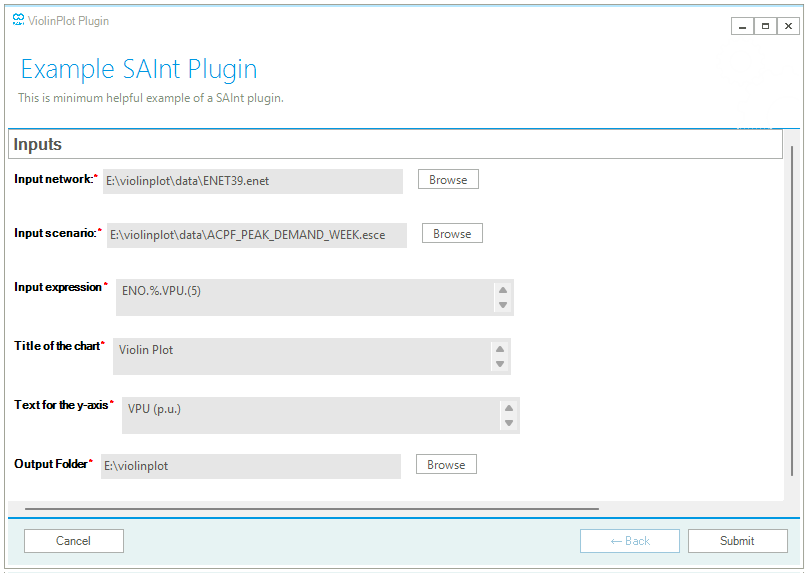
Once the installation is successful, the new plugin is listed in the "Install Plugins" tab of the general settings, and a new icon is now available in the "Tools" tab from the main window. The user can now click on "Violin plot chart" to launch the plugin. SAInt will generate the violinplot plugin wizard interface, where the required parameters can be filled in, like (for example) in Figure 1.
By clicking "Submit", the parameters are parsed and passed to the executable. A new window, the "Plugin Process [Live]" opens, and the program is run in the background. The user is informed of the results of some of the steps taking place in the code by messages logged in the plugin window. Errors or problems are also logged, as well as a successful run of the plugin.
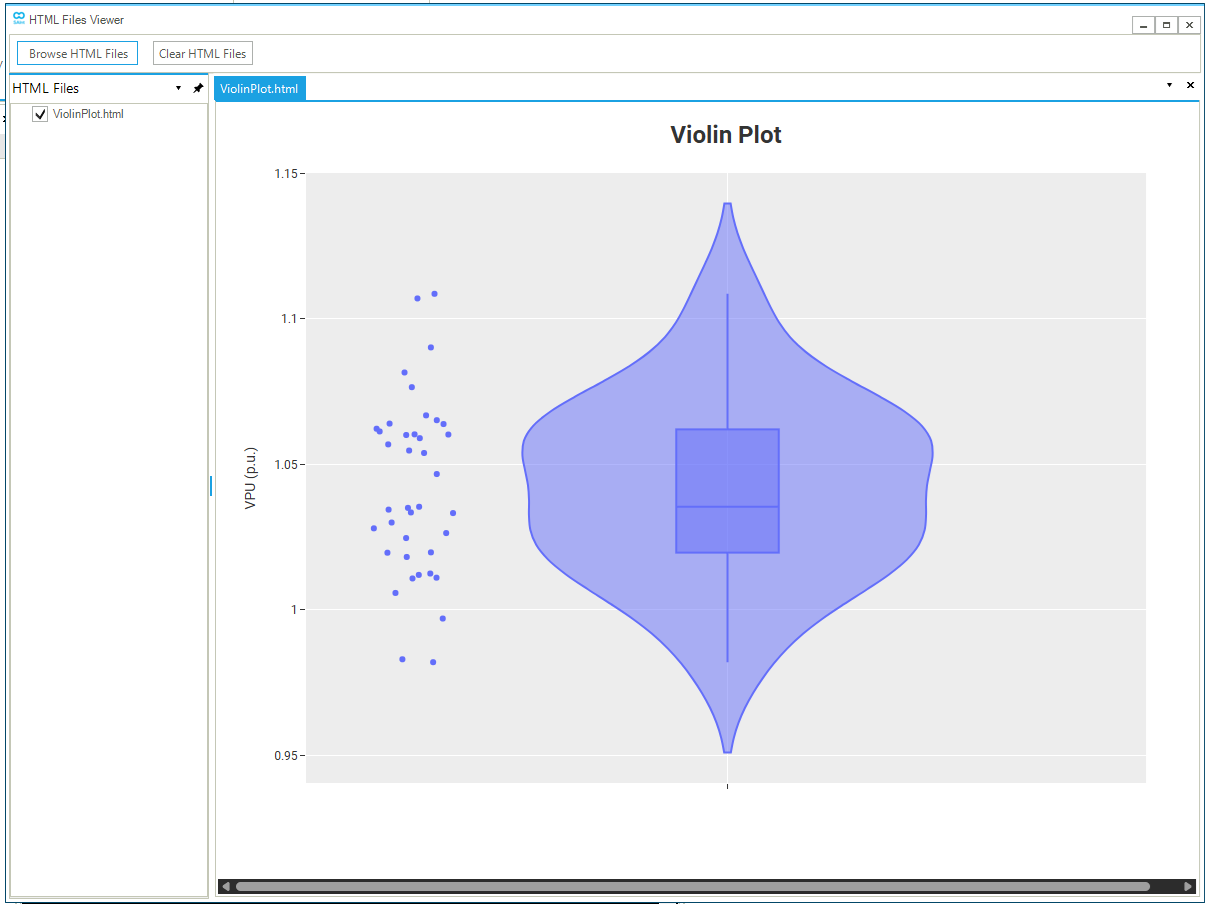
Because the result of the plugin is an HTML file, the "Report Viewer" is used by SAInt to display the output, like in Figure 2.
To review how install and execute a new plugin check the How-To "Install and Execute a Plugin".
1. Distribute the plugin
When you have finished to develop your plugin, it is time to share it with colleagues and the SAInt user community. You can now share the "*.plugin" file. It is also a good practice to add "readme.txt" where you provide details of your plugin.
Remember, you can always share your work with the Community of SAInt users by posting your plugin on the SAInt Forum!
2. Possible improvements
The plugin developed in this tutorial is rather basic, and it aims at showcasing the development workflow rather then producing a robust and comprehensive solution. For this reason, for example, we have not incorporated any checks on the validity of the input parameters, as well as on the existence of a valid solution for the scenario where the data are coming from.
Some ideas to improve the plugin are:
-
If the plugin is launched from a SAInt session with an active network and scenario, such network and scenario should be implicitly used as input parameters and not user specified. This could be achieved by taking advantage of SAInt GUI state parameters.
-
A better default location where to save the the violinplot chart is the folder
.\encoord\SAInt\PluginOutputin the default "Documents" folder of the Windows user. -
The plugin is designed to extract data from the a solved scenario via an expression. But the expression could also be used to collect data from the network. The plugin could be restructured so that the scenario is an optional argument, and based on the specified parameters, the expression is evaluated for scenario or network data.