Install and Execute a Plugin
Plugins are modular software components built on top of the SAInt application programming interface (API) to support common workflows such as data translation and analytical processing.
Users can develop their own plugin or get one from the category "Plugins" on the community Forum among the plugins provided by encoord or other SAInt users.
We describe here how to install and execute a plugin. For more details on plugins check the section "Plugin Development" or the tutorial "Beginner Tutorial on Plugins Development".
1. Install and remove a plugin
A plugin in SAInt comes in the form of a compressed ZIP archive, with extension "*.plugin", containing at least two files: the executable program called "main.exe" (i.e., the actual plugin) and a "form.yaml" describing the graphical interface of the plugin. Other files may be present as, for example, documentation files, templates for data input or the "icon.svg" file for the icon to be used as button in th SAINt-GUI.
To install a new plugin "New_Plugin.plugin", select . In the "Installed Plugins" window choose the button Install Plugin. In the selection window "Select PLugin File", navigate to the folder where the "*.plugin" archive is, select and open the file.
SAInt will perform checks and inform you if any problems occurs. SAInt will ask you if you want to install an unverified plugin, in case the plugin executable is not signed. If you trust the source, select "Yes".
If the installation is successful, you will be informed the the new plugin is ready for use.
To uninstall a plugin, reopen the "Plugin" section in the general settings of SAInt, and use the button Uninstall, to select the plugins you want to remove. To complete the process click on Apply & Exit.
2. Execute a plugin
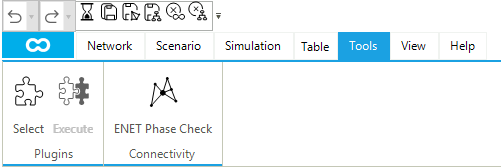
Once a plugin is installed, it is time to use it. Simply click on the new button available from the menu . For example, Figure 1 shows the new icon for the plugin "violin plot chart" from the tutorial "Beginner Tutorial on Plugins Development".