Comparing Node Voltages Between Two Scenarios
The "Integrated Planner" tool makes it simple for users to take the results of one scenario and establish reference values in another to check the system’s response to various changes.
This example is using a steady state ACPF scenario, but the same approach works for a quasi-dynamic ACPF simulation or other scenario types.
1. Define the reference values
The "Integrated Planner" tool can be used only when a valid network and a solved scenario are available in SAInt. So, the first step is to load an existing power system and scenario, create a new scenario for an existing network, or develop a network and scenario from scratch. Run the scenario and ensure you have a valid solution.
For this How-To, we will use the model ready dataset ENET39 available from the SAInt Users Forum under the category "Model Ready Datasets". But the same approach is valid for any other electric network and any other solved scenario.
Load the network ENET39.enet and the ACPF scenario ACPF_IEEE39_BASE_RESULTS.esce. Solve the scenario before proceeding. Now, we have a solution to use as a reference for comparison to another scenario.
|
To access the SAInt Users Forum, you need to register. It is free! You will join an active community of SAInt users and experts, along with other documentation, data and plugins. |
2. Export the results with the Integrated Planner
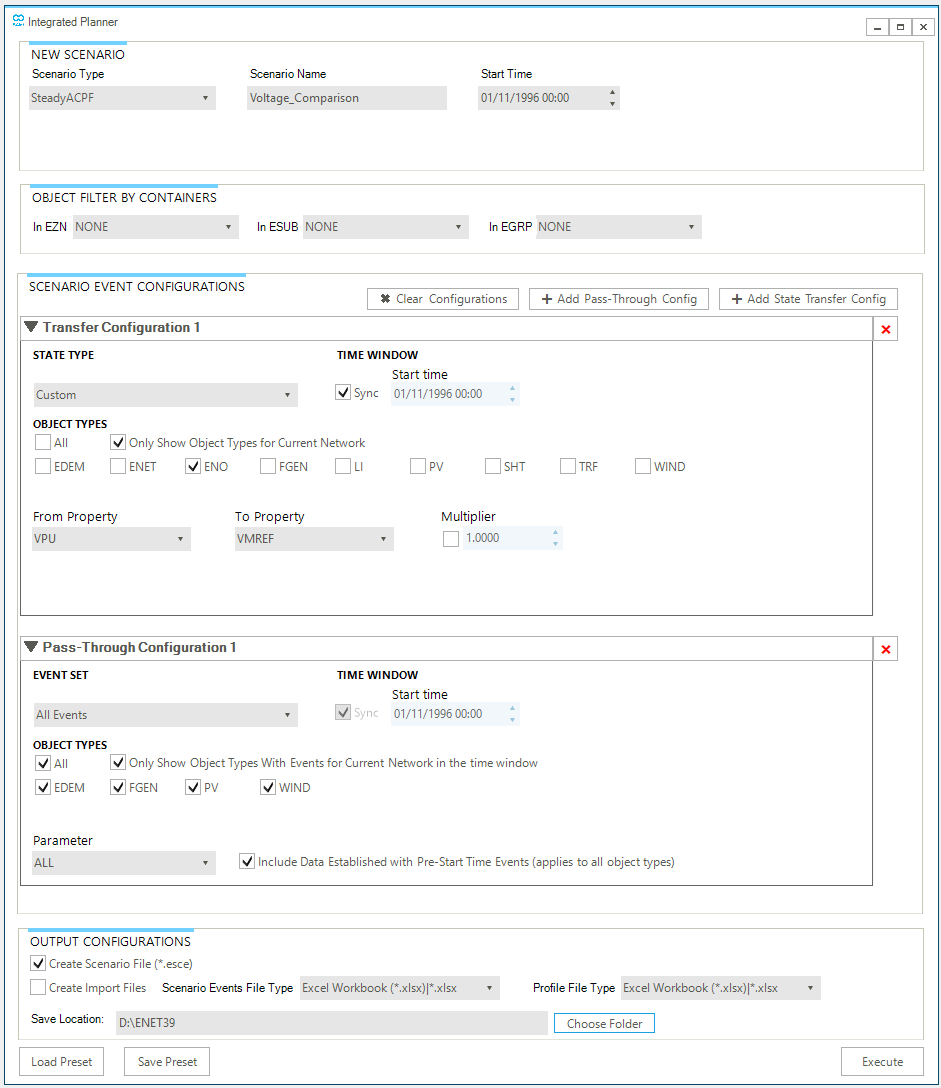
With the solved scenario active, open the "Integrated Planner" tool. Select the new scenario as "SteadyACPF" and set the "Scenario Name" to something meaningful (we will use "Voltage_Comparison" as a name).
Leave "Object Filter by Containers" set to the defaults, as we do not want to perform any object sub-setting.
Configure a custom "Transfer Configuration" for ENO objects only by ticking the box for "ENO" and leave all the others unticked. Make sure that the "From Property" is set to VPU and the "To Property" is set to "VMREF". The multiplier is unticked. In this way, we transfer the voltage from the solved scenario to the VMREF event of the new scenario.
And add a "Pass-Through" configuration where you select "All Events" for "EVENT SET", you make sure to tick all boxes in the "OBJECT TYPES" section, and choose "ALL" in the "Parameter" section, along with ticking the box for including all data established with pre-start time events. In this way we transfer all events from the old to the new scenario.
Finally, check that in the "OUTPUT CONFIGURATIONS" section you have "Create Scenario File (*.esce)" ticked and that the "Save Location" matches the directory where your network and solved scenario are (this is the default behavior).
See Figure 1 for how the "Integrated Planner" should look.
Once you push the button Execute, SAInt will transfer all relevant results to a new scenario, and you will receive a message stating "Data Transfer executed successfully!".
3. Compare Voltages between scenarios
Now, load the newly created scenario Voltage_Comparison, which is configured exactly the same as the original ACPF_IEEE39_BASE_RESULTS scenario, except it now also includes the VPU values from the original scenario attached to the VMREF property. This happened in the "Transfer Configuration" by default (see Figure 1).
Now add a new event to the scenario where we turn off a generator. For example, select from the model explorer the generator FGEN.BRIDGEPORT, and from the context menu (after right-click) under "Scenario Event" choose the entry "Turn off facility, service or object (OFF)".
Execute the scenario "Voltage_Comparison".
We are now ready to assess the impact on voltages when having a generator off by comparing the values of VPU of the solution of the scenario with the fuel generator FGEN.BRIDGEPORT not operating and the values of the property VMREF. Open the ENO table from the "Table" tab, and pin the columns "ID", "VPU", and "VMREF" to the left. If you do not see a column, use the "Column Chooser" to bring it into the table.
You can order the VMREF column in descending order and compare with VPU. Or, you can compute the difference with the command eval('ENO.%.VPU - ENO.%.VMREF') in the "Command Window". Or use the table command instead from the "Command Window" with table('ENO.%.VPU - ENO.%.VMREF').