Creating the plugin form
The plugin form is a yaml file specifying the wizard behavior and looks. At a high level, it will take inputs from a user and send them to the plugin executable as arguments. YAML is "is a human-friendly data serialization language for all programming languages". It is commonly used for configuration files and in applications where data is being stored or transmitted.
Please refer to the section "Form" for a detailed description of the syntax and structure of the form file.
1. The "form.yml" file
Although a GUI isn’t strictly necessary for a plugin, it provides a more convenient way to interact with the user and gather inputs for the plugin’s executable component.
Let’s create an empty text file called "form.yaml" in the folder "dist". And then, copy and paste the following text in the file. Save when closing.
The complete version of the form file for the violinplot plugin is available here (Click to open).
wizard:
  title: "ViolinPlot Plugin"
  pages:
    - name: "user_inputs"
      title: "Example of a SAInt Plugin"
      description: "This is minimum helpful example of a SAInt plugin."
      page_sections:
        - name: "inputs"
          mode: "Fixed"
          title: "Inputs"
          fields:
            - name: "network"
              label: "Input network: "
              type: "fileexplorer"
              options:
                - display_name: "SAInt Electric Network"
                  value: ".enet"
                - display_name: "SAInt Gas Network"
                  value: ".gnet"
                - display_name: "SAInt Thermal Network"
                  value: ".tnet"
              validation_rules:
                - type: "required"
            - name: "scenario"
              label: "Input scenario: "
              type: "fileexplorer"
              options:
                - display_name: "SAInt Electric Scenario"
                  value: ".esce"
                - display_name: "SAInt Gas Scenario"
                  value: ".gsce"
                - display_name: "SAInt Thermal Scenario"
                  value: ".tsce"
              validation_rules:
                - type: "required"
            - name: "expression"
              label: "Input expression"
              type: "textbox"
              options: []
              validation_rules:
                - type: "required"
            - name: "title"
              label: "Title of the chart"
              type: "textbox"
              default_value: "ViolinPlot"
              options: []
              validation_rules:
                - type: "required"
            - name: "axis"
              label: "Text for the y-axis"
              type: "textbox"
              options: []
              validation_rules:
                - type: "required"
            - name:  "output_folder"
              label: "Output Folder"
              type : "folderexplorer"
              default_value: "%userprofile%/Desktop"
              validation_rules:
              - type: "required"

      page_navigation:
        show_submit: true

  navigation_elements:
    previous_button:
      label: "← Back"
      color: "#6c757d"
    next_button:
      label: "Next →"
      color: "#007bff"
    submit_button:
      label: "Submit"
      color: "#28a745"
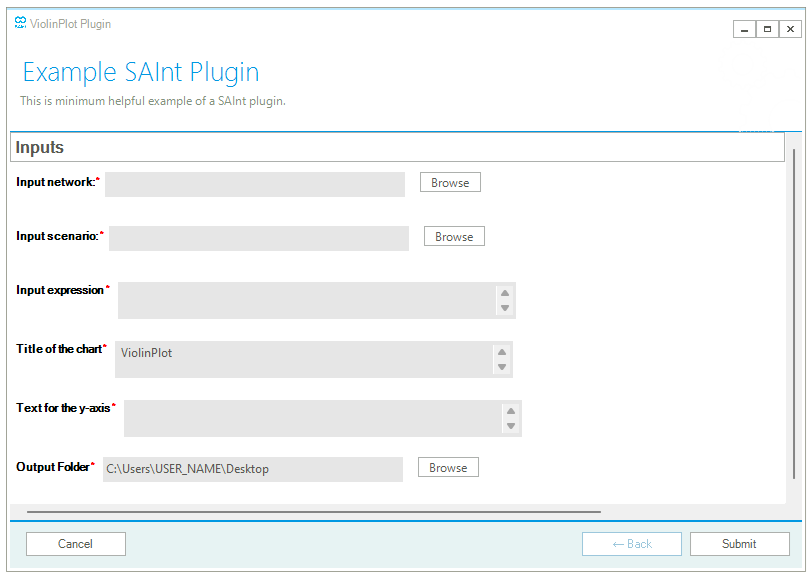
After validation of the code, SAInt will render the content of the file "form.yaml" as in Figure 1.
As in the case of the execution of the script in the command line, we need to collect all required parameters and pass them to the executable. All parameters are mandatory and have a red asterisk next to their name.
In the form, the fields "network" and "scenario" are of type "fileexplorer", and can filter their objects based on the matching of the correct extension for the network or scenario types.
The field "expression", "title", and "axis" are all of type "textbox", with no default value.
Finally, the field "output-folder" is of "folderexplorer" type, with a default value pointing to the desktop folder of the user of the Windows session.
2. Add an icon to your plugin
We can personalize the plugin by adding our own icon in place of the default used in SAInt. Let’s create a black and white SVG image with a simple shape describing a violin plot. You can copy the following SVG code into a text file and rename the file into "icon.svg". Place the new file into the dist folder.
Example of icon for the violin plot plugin in SVG format (Click to open).
<svg xmlns="http://www.w3.org/2000/svg" xmlns:xlink="http://www.w3.org/1999/xlink" viewBox="0 0 24 24" fill="none" aria-label="Violin plot icon">
<defs>
  <pattern xlink:href="#a" id="b" patternTransform="scale(10)"/>
  <pattern id="a" width="2" height="1" patternTransform="scale(10)" patternUnits="userSpaceOnUse"><path d="M0-.5h1v2H0z" style="fill:#000;stroke:none"/>
  </pattern>
</defs>
  <path stroke="#000" stroke-linecap="round" stroke-linejoin="round" stroke-width="1.999" d="M2.336 2.48V22h19.328" style="stroke-width:.8;stroke-dasharray:none"/>
  <path fill="#fff" stroke="#000" stroke-linejoin="round" stroke-width="1.5" d="M13.115 2.957c-2.11 1.408-2.11 4.222-.985 5.91-2.954 1.83-2.954 6.05.985 10.976 3.94-4.925 3.94-9.147.985-10.976 1.126-1.688 1.126-4.502-.985-5.91z" style="fill:url(#b);fill-opacity:1;stroke-width:.8;stroke-dasharray:none"/>
  <path stroke="#000" stroke-linecap="round" stroke-width="1.5" d="M10.537 11.681h5.23" style="stroke-width:.862202;stroke-dasharray:none"/>
</svg>