Send unit commitment from one DCUCOPF scenario to another
Different types of scenarios are used for different purposes; some are used to minimize the generation fleet’s production costs, while others are used to understand the network’s technical limitations. In SAInt, the Integrated Planner tool can export events and profiles from one scenario type to be used as inputs for another.
This guide shows how to use the Integrated Planner to transfer the unit commitment from one DCUCOPF scenario to another DCUCOPF scenario, in order to optimize generator dispatch with unit commitment fixed.
1. Export commitment and profiles
To use the Integrated Planner, you must have a solved scenario. Load your model and the DCUCOPF scenario of interest. Check to have a valid solution, for example, by looking at the bottom-right corner of the SAInt main window. You should see "ESCE - Solved" on a green background.
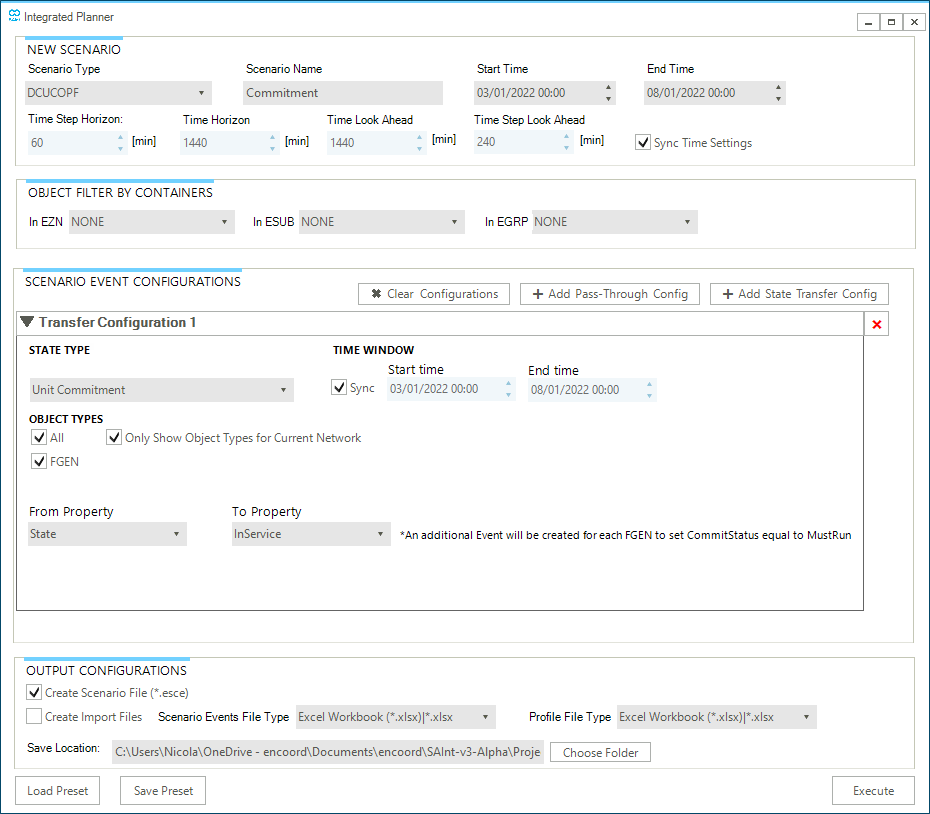
Select the button to open the "Integrated Planner" form. Fill in the details as follows (see Figure 1):
- NEW SCENARIO
-
In this section, select the type of scenario to create (i.e., a
DCUCOPF), give a name (e.g., "Commitment"), and define the new scenario start and end time (the default is to use start and end time of the solve active scenario). Modify the "Time Horizon", "Time Look Ahead", and "Time Step Look Ahead" if necessary, by unchecking the option "Sync Time Settings". - OBJECT FILTER BY CONTAINERS
-
Select any relevant filter you may want to apply. The default behavior is to not activate filters.
- SCENARIO EVENT CONFIGURATIONS
-
Make sure to have "Transfer Configuration 1" section. You can use the button x Clear Configurations and + Add Transfer Config to remove any existing configuration and add a new default "State Transfer configuration" to work with.
In "Transfer Configuration 1", specify as "STATE TYPE" the option "Unit Commitment". Keep checked the option "Sync", so that the exported events match the new scenario start and end time. By default, the configuration will have checked the boxes "All" and "Only Show Object Types for Current Network", with only "FGEN" as possible objects to use. For the generators, the "From Property" is fixed to
State, and the "To Property" is fixed toInService. A note is stating that for eachInServiceevent an additional event with parameterCommitStatusand valueMustRunis created. - FILE CONFIGURATIONS
-
Specify the "Save Location" for your scenario. The default is to use the same folder as the original solved DCUCOPF scenario. And make sure to have "Create Scenario file (*.esce)" checked. Optionally, you may create import files by selecting the option "Create Import Files" and choosing the format for the events and profiles.
Once ready, just click the button Execute to carry out the export of the data to a new DCUCOPF scenario.
2. Include commitment events
When a state transfer operation is successful, SAInt generates a log file and the requested scenario, events, and profiles import files.
The scenario generated contains only the details of the in service status and the commitment status of the selected generators. The events and associated profiles need to be included in a brand new or existing scenario by the user. Simply load this other scenario in SAInt and use the option . Remember to set the proper time frame for the data to be included.
The exported scenario created by the Integrated Planner will be available in the list of the Model Explorer only if saved in the folder of the active network. Similarly, it will be available in the "Scenario Dialog" window. If saved in a different folder, you can use to load it.
Once the new scenario is ready, it can be solved.
3. Import the commitment events and profiles
Alternatively, it is possible to import the commitment events and their profiles into a scenario using and if they have been exported. It is important to remember to import first the profiles and after the events to avoid errors in the construction of the scenario (i.e., the profile part is dropped during the import because SAInt does not recognize any valid profile, as they are not yet available).