Integrating Weather Resource Data
SAInt connects to several weather resource databases from different data providers, which allow the creation of high-resolution wind and solar power time series for different plant designs and locations where weather resource data are available. These publicly available weather databases are constantly updated. Thus, data for additional weather years with different temporal and/or spatial resolutions and different geographic locations will become available. Three sections of the main settings of SAInt are relevant for the weather resource data: the "data provider" that defines the settings of each weather resource data, the "collected weather data" which is the region of the window where details of the selected objects are reported, and the "generation profile from weather data" that calculates the generation profile time series.
For step-by-step guides on how to import data see the How-To "Collect weather data for a solar generator", the How-To "Collect weather data for a wind generator", and the How-To "Connect to Weather Resource Data Providers".
1. Connecting to a data provider
The user can access the entry point to connect SAInt to a data provider by selecting from the button  . Each data provider has a unique server URL pointing to the relevant database as shown in Figure 1.
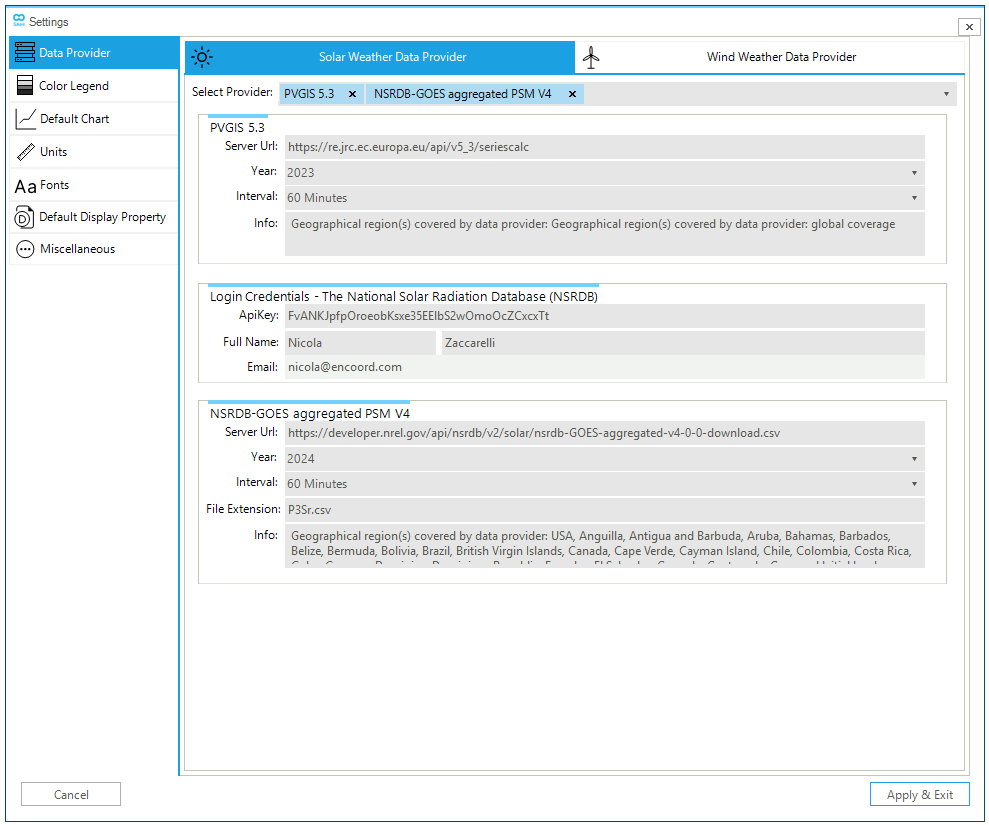
The data provider tab allows the user to choose between solar or wind databases, and the relevant options are:
- Select provider
-
The user can select from a list of multiple data providers for different weather resource databases. See Table 1 and Table 2 for more information on solar and wind weather data provider and their coverage area, respectively.
- API key
-
To access some of the data services, the user must register with the data provider and obtain an API key. The API key must be passed to SAInt provided so that the user is authorized to request and retrieve the data.
- Full name
-
First and last names of the user used during the registration phase.
-
Email used during the registration phase.
- Server URL
-
Links to the data provider’s server URL. Refer to Table 1 and Table 2 for the list of server URLs for solar and wind weather data providers, respectively. The list of server URLs can also be found in the
DataProviderURL.txtfile in theDataImportfolder. - Year
-
Selection of different weather year(s) available from the corresponding weather resource database. For each database, SAInt shows the available options.
- Interval
-
Selection of different temporal resolution(s) available for the corresponding weather resource database. For each database, SAInt shows the available options.
- File extension
-
The option allows the user to define a custom file extension for the downloaded weather data file(s).
- Info
-
The option provides information about the weather resource database, such as the geographical region(s) covered by the data provider.
The list of the weather data provider(s) selected in the data provider tab will be displayed in the collect weather data wizard. The wizard will not be available to the user if nothing is selected.
|
|
The value of the The file SAInt saves the details provided by the user for any data provider in the folder |
1.1. Solar weather data provider
The current version of SAInt connects to the following solar weather data providers through their APIs:
- NSRDB
-
The NSRDB is owned and maintained by NREL. The database allows users to collect solar resource data in different parts of the world, each with a different server URL. However, the same API key can be used for all the different server URLs. For additional information, access the NSRDB's website: https://nsrdb.nlr.gov/about/what-is-the-nsrdb.
- PVGIS
-
The Joint Research Centre of the European Commission developed a web application that allows the user to get data on solar radiation and PV system energy production in most parts of the world. Users do not require login credentials to access the weather resource database. For additional information, access PVGIS's website using this link.
The solar weather data providers allow users to collect solar resource data such as the global horizontal irradiance (GHI), the direct normal irradiance (DNI), the diffuse horizontal irradiance (DHI), the air temperature, and the wind speed. Figure 2 shows the geographical area covered by the different solar weather data providers. Each location (color) is associated with one (or more) weather data resources.
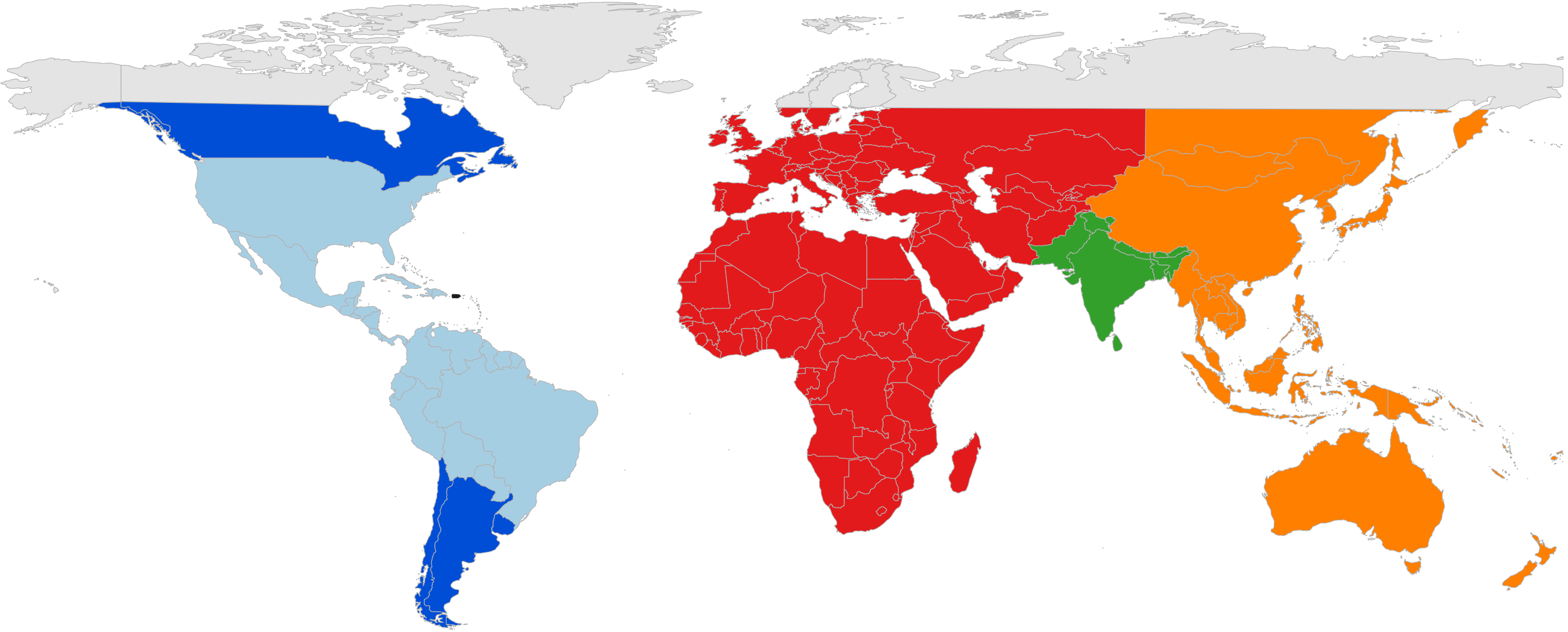
Depending on the data provider, different weather years, and temporal and spatial resolutions are available for each location. Table 1 shows an overview of the available solar weather data providers.
|
As of SAInt 3.8, the API entry point for PVGIS is The time coverage depends on the chosen location and may be either 2005 - 2015 or 2005 - 2020. Refer to section "3. Choosing solar radiation database" of the "PVGIS user manual" for details. |
| Data Provider | Weather Year(s) | Temporal Resolution | Spatial Resolution | Coverage Area (Color) |
|---|---|---|---|---|
2018 - 2024 |
10, 30, 60 minutes |
2 km x 2 km |
Dark and Light Blue |
|
1998 - 2024 |
30, 60 minutes |
4 km x 4 km |
Light Blue |
|
2018 - 2024 |
5, 15, 30, 60 minutes |
4 km x 4 km |
Light Blue |
|
2017 - 2019 |
15, 30, 60 minutes |
4 km x 4 km |
Red |
|
2000 - 2014 |
60 minutes |
10 km x 10 km |
Green |
|
2011 - 2015 |
30, 60 minutes |
4 km x 4 km |
Orange |
|
2016 - 2020 |
10, 30, 60 minutes |
2 km x 2 km |
Orange |
|
2022 - 2024 |
60 minutes |
4 km x 4 km |
-* |
|
2005 - 2023 |
60 minutes |
4 km x 4 km, 5 km x 5 km, 25 km x 25 km |
latitude 60 °S - 74 °N |
1.2. Wind weather data provider
The current version of SAInt connects to the following wind weather data providers through their APIs:
- WIND Toolkit
-
The WIND Toolkit is owned and maintained by NREL. The datasets allow users to collect wind resource data in different parts of the world, each with a different server URL. However, the same API key can be used for all the different server URL. For additional information, access the WIND Toolkit’s website: https://www.nlr.gov/grid/wind-toolkit.html.
The wind weather data providers allow users to collect wind resource data such as wind speed, wind direction, air pressure, and air temperature at different locations and heights. Figure 3 shows the geographical area covered by the different wind weather data providers. Each location (color) is associated with one (or more) weather data resources.
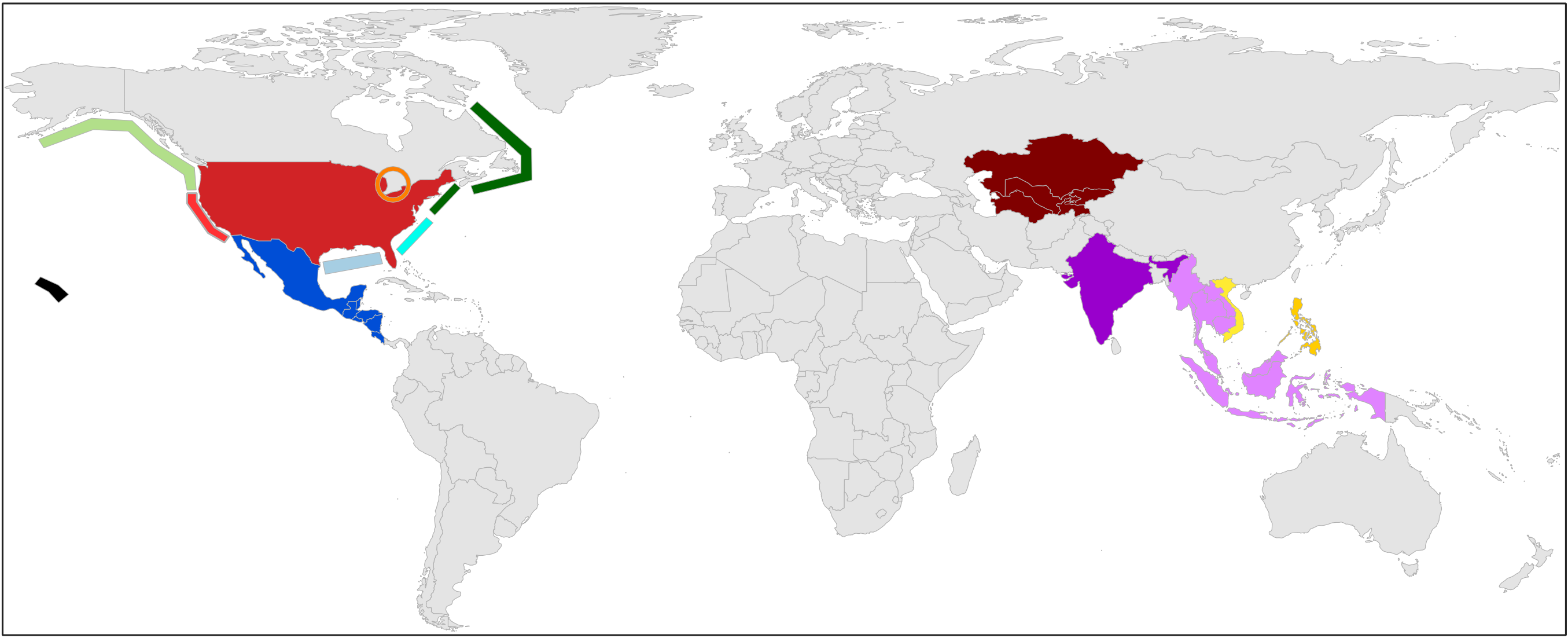
Depending on the data provider, different weather years, and temporal resolutions are available for each location. Spatial resolution is set to a grid of 2 by 2 kilometers. Table 2 shows an overview of the available wind weather data providers.
| Data Provider | Weather Year(s) | Temporal Resolution | Coverage Area (Color) |
|---|---|---|---|
2007 - 2014 |
5, 15, 30, 60 minutes |
Dark Blue |
|
2014 |
15, 60 minutes |
Dark Purple |
|
2015 |
15, 30, 60 minutes |
Dark Brown |
|
2000 - 2020 |
5, 15, 30, 60 minutes |
Light Red |
|
2000 - 2020 |
5, 15, 30, 60 minutes |
Orange |
|
2000 - 2020 |
5, 15, 30, 60 minutes |
Black |
|
2017 |
60 minutes |
Dark Yellow |
|
2016 |
60 minutes |
Light Yellow |
|
2007 - 2014 |
5, 15, 30, 60 minutes |
Dark Red |
|
2000 - 2020 |
5, 15, 30, 60 minutes |
Light Blue |
|
2000 - 2020 |
5, 15, 30, 60 minutes |
Cyan |
|
2000 - 2019 |
5, 15, 30, 60 minutes |
Light Green |
|
2000 - 2020 |
5, 15, 30, 60 minutes |
Dark Green |
|
2017 - 2021 |
15, 30, 60 minutes |
Light Purple |
|
2009 - 2017 |
15, 30, 60 minutes |
Dark Red (only for the state) |
|
2009 - 2017 |
5, 15, 30, 60 minutes |
Cyan/Light Blue |
|
2016 - 2021 |
15, 30, 60 minutes |
Light Purple |
|
2015-2023 |
60 minutes |
- * |
2. Collecting weather data from a data provider
Once a connection between SAInt and a data provider has been defined, as described in Section 1, the user can collect weather data directly within SAInt via the collect weather data wizard, as shown in Figure 4. PV and WIND weather resource data need to be collected separately since one collect weather data wizard (either for PV or WIND) can be accessed at a time. In the same session, different weather data providers can be accessed for each object of the same type.
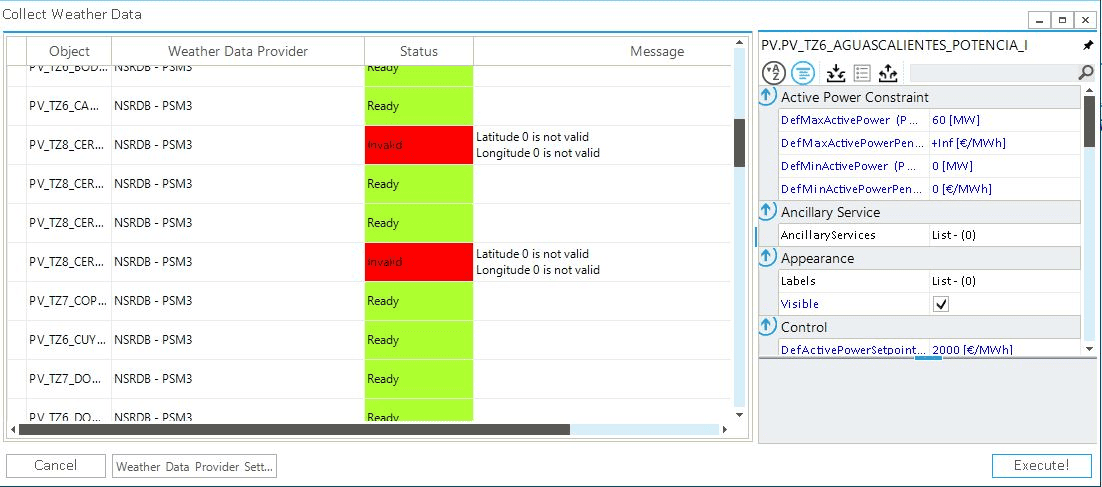
The main options of the collect weather data wizard are:
- Object
-
This option provides a list of the solar or wind generators selected to collect the weather resource data.
- Weather data provider
-
This option shows which data provider will be used to collect the weather resource data.
- Status
-
The field reports any issues with the object properties defined by the user or connecting and downloading data from the data provider.
- Message
-
The field provides the user with feedbacks on any issue in the definition of the object properties or while downloading the weather resource data.
- Action
-
The option allows the user to define whether to consider an object when downloading data.
Continuewill consider the object when downloading the weather resource data, whileSkipwill skip the selected object. - Property editor
-
The option opens the property editor of the selected object allowing the user to edit the properties of the object.
- Weather data provider setting
-
The option opens the data provider wizard, allowing the user to edit the configuration of the weather data providers.
- Execute!
-
The option downloads weather resource data and saves the corresponding files in the project folder.
Before downloading any data, the user should ensure all objects' status is Ready or any action is set to Skip, if needed. Once the weather data file has been created, the status will change to Downloading and Done. If an error occurs, the status changes to ServerError, and a message is provided.
|
The weather resource data for solar and wind generators are retrieved according to the latitude and longitude properties of the object(s). |
|
2.1. Weather data file
The collect weather data wizard creates an individual weather data file for each object (PV or WIND) that is saved in the same location as the electric network files, in a folder named WeatherData. Each file is saved in a comma-separated format with the following naming convention: GenType_ObjectID_Lat_Lon_Year_TimeInt.Extension.csv. The weather resource data file is then used to create a time series profile of the solar or wind generator’s hourly (or sub-hourly) generation.
|
The name of a weather data file cannot be modified since SAInt uses it to create the generation time series profiles. |
- Solar weather data file example
-
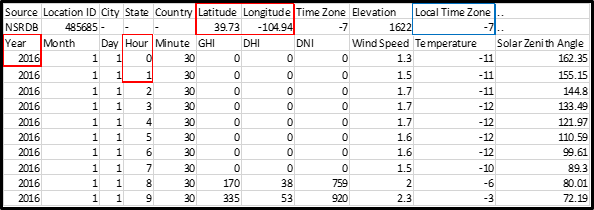
Figure 5 shows an example of a solar weather data file collected from NSRDB. The red boxes (year, time resolution, latitude, and longitude) highlight the properties set by the user for the specific object. The blue boxes show the local time zone of the data, negative to the West of Greenwich. The weather variables (GHI, DHI, DNI, wind speed, air temperature, and solar zenith angle) are related to the pair of latitude and longitude coordinates closest to the ones defined by the user for the solar generator in SAInt.
- Wind weather data file example
-
Figure 6 shows an example of a wind weather data file collected from WIND Toolkit. The weather variables (e.g., pressure, wind speed, wind direction, and air temperature) are related to the pair of latitude and longitude coordinates closest to the ones defined by the user for the wind generator in SAInt.

3. Generating a profile based on weather data
The generate profile from the weather data wizard, shown in Figure 7, calculates the power generated by the solar or wind power plants, generating a time series profile of the hourly (or sub-hourly) generation. It can be accessed via the context menu of a solar or wind generator.
How are solar profiles generated in SAInt?
SAInt uses the System Advisor Model (SAM) developed by NREL to calculate solar PV generation profiles. SAM is a techno-economic model designed to facilitate decision-making for people involved in the renewable energy industry.
The Learn-More section "Solar power performance model: PVWatts v.7" provides a short introduction to the model and links to on-line resources for a deep dive into the full model and methods.
How are wind profiles generated in SAInt?
SAInt has a built-in wind power performance model to calculate a wind power plant’s power generation time series. The wind weather resource data is used as an input, in addition to the wind turbine power curve and the turbine’s hub height.
The Learn-More section "Wind power performance model" provides a description of the methodology and of the model used in SAInt.
|
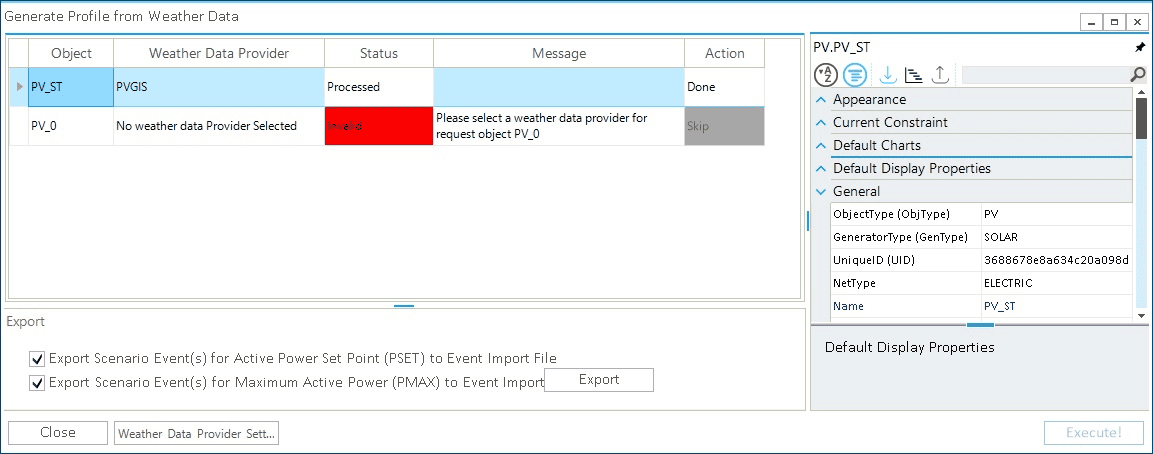
The options for the generator profile from the weather data wizard are:
- Object
-
The option provides a list of all the solar or wind generators selected to collect the resource weather data.
- Weather data provider
-
The option shows which data provider was used to collecting the weather resource data. If no weather data was collected, the user an error message is provided.
- Status
-
The field diagnoses any issues with the object or weather data file.
- Message
-
The field gives the user feedback on any issue in the definition of the object properties or while downloading the weather resource data.
- Action
-
The option allows the user to define whether to consider an object or not when calculating the generation profile.
Continuewill consider the object during calculation, whileSkipwill skip the selected object. - Property editor
-
the option opens the property editor of the selected object and allows editing of the properties of the object.
- Export
-
The option allows the user to create import files for the profile and scenario event(s) of the generator(s). If a scenario file is open during this process, the user can directly add the generator profile and scenario event(s) into the scenario file.
- Weather data provider setting
-
The option opens the data provider wizard, allowing the user to edit the configuration of the weather data providers.
- Execute!
-
The option calculates the generation profile time series that is saved in the profile table.
Before creating the generation profile, the user should ensure all objects' status are Ready or action is set to Skip if needed. Once the profile time series have been calculated, the status and action will change to Processed and Done, respectively. If an error occurs the status changes to Invalid. The profile can be assigned to either a PSET or PMAX scenario event for the solar and wind generators.
|
When successfully exporting profile and/or scenario event(s) for the selected generator(s), the log file reads "Export of Profile and Scenario Event(s) for the selected Generator(s) completed" if both "export events" are selected, or "Export of Profile for the selected Generator(s) completed" if only one of the two "export events" is selected. |
When missing values are present in the source data, retrieved from the weather data provider, SAInt performs a linear interpolation of the available information. The user is informed by a message in the Log Window stating, for example, "N/A or missing values in "wind speed at 10m (m/s)" column have been linearly interpolated using the existing data".
If the entire record is missing and no interpolation is possible, the user is informed by reporting an error message stating "The given array is too small. It must be at least 2 long. Parameter name: x" in the "Message" box of the weather data window.